-
×
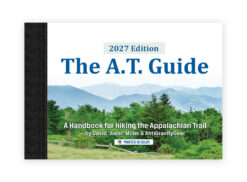 2027 A.T. Guide (PUR Bound)
1 × $21.21

PDF Download Instructions & Troubleshooting Tips
iPhone Instructions

- Download App from App Store
- Open the App and tap either "I have already purchased a PDF" or "I need to purchase PDF"
- Create an account or log into your existing A.T. Guide account
- If you have already purchased a PDF your PDF will load into your app and you are ready to go. If you need to purchase a PDF you will be directed through the checkout process. Once checkout is complete your PDF will be loaded into your app.
Here is our video series for how to use our A.T. Guide PDF Reader for iPhone. There are 12 very short videos. Tap the menu in the top right corner of the playlist to view the entire playlist and select the topic you would like to see.
Android Download Instructions
You can download The A.T. Guide PDF directly to your Android device and open it in your favorite PDF reader. We recommend Dropbox, which also lets you store your PDF for offline use.
-
Download the free Dropbox app and create an account. You don't need a paid subscription! Choose the free Basic plan.
-
Open your A.T. Guide order confirmation email and tap the PDF download link. Choose your browser if prompted.
-
Find the PDF in your device's Downloads folder.
-
Tap the three dots (⋮) beside the file, select Share, and choose Dropbox.
-
Open Dropbox and enjoy your Guide!
Prefer another PDF reader? No problem! Just open your downloaded PDF in whichever app works best for you.
Manual Download Instructions
Your PDF may be manually downloaded to your computer or mobile device in 2 easy steps:
Desktop Instructions:
- Access your order confirmation email or login to your account downloads, click the download link.
- Go to your downloads on your computer to access, and move your download to where you would like to store it and open it with the PDF reader of choice. For desktop use, we recommend Adobe Acrobat Reader for desktop.
Troubleshooting
Please update your iOS app to the latest version 1.0.8. This version fixes the login issue.
If you purchased the 2026 Book & PDF Combo and your PDF is showing a previous year, please make sure first that you are using the most up to date version of the app. If you still have a problem, contact us so we can correct your account.
Once we’ve made the correction, refresh your purchases in the app. If the wrong PDF still appears, tap the three dots (…) on the book cover and select “Re-download the Latest PDF Version.”
- Make sure you used the same user account with which you purchased your PDF. Some people unintentionally create multiple accounts. If you need assistance consolidating your purchase history to one account, please contact us.
- Refresh your purchase history, and activate your recent purchase. This is how:
-
- Go to your “SETTINGS” panel in your ATG PDF Reader App.
- Tap, “Past Purchases”.
- Tap the 🔄 on the top right side above your list of past purchases to refresh your list.
- Check the items in the list you would like to show in your app library. Unchecking items does not delete them permanently from your account. It simply hides them.
Email or call us and we will be happy to send you your correct username and send you a link to reset your password.
Because of the layout of the book, the highlighter can have trouble highlighting large areas of text, especially text that is in columns. The work around is to keep your highlights simple. If you can not highlight as much as you want in one highlight, use a few smaller highlights.
Please refer to the dropdown menu above on this page, “Android Download Instructions.” If you continue to have challenges, please reach out and we will be happy to assist you.
- Contact us and we will be happy to send you your correct username and send you a link to reset your password.
Your username is usually your email address. If your full email doesn’t work, try just the part before the @ symbol.
To reset your password:
- Visit My Account.
- Click “Lost your password?” and enter your username or email address.
- Check your email for a password reset link and follow the instructions.
Still having trouble? Check your spam folder. If you don’t receive the reset email or can’t remember your username, please contact us. We’ll help you get back into your account.
If you can’t find your confirmation email:
- Search your email (including spam) for “Your A.T. Guide order has been processed.” Your download link is included in that email.
- You can also access your purchases through your Download Management Console. Log in to view your past orders and download links.
Not seeing your purchases? You may be logged into a different account. Please contact us if you need help locating or combining accounts.
Never received your confirmation email? There may be a typo in the email address used at checkout. Contact us with your correct email address, and we’ll help correct your account information and resend your download link.
Sale!
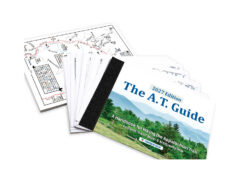

Original price was: $24.95.$21.21Current price is: $21.21.
Sale!
Original price was: $24.95.$21.21Current price is: $21.21.

$21.95


$21.95

$21.95


$21.95
Out of stock
$17.95

Out of stock
$17.95